Add membership card (PDF attachment) to formidable forms
This is a great use case for a Formidable Forms View, but to send it as a reliable attachment, you’ll need the Formidable Forms PDF Add-on (which is typically available with their Business or Elite plans).
Here’s the general process using the PDF Add-on:
1. Ensure the View Displays a Single Entry
Your membership card view needs to display the data for only the entry that was just submitted. You likely already have this set up by using a filter in your View settings like:
- Filter entries:
Entry IDequals[get param=entry_id] - Or, if you’re redirecting with a custom URL after form submission, make sure the View is set to display a single entry based on the entry’s key or ID.
2. Configure the PDF Generation to Use Your View
The PDF Add-on lets you generate a PDF from either the raw entry data or a specific View. To use your custom-designed membership card View:
- Go to your form’s Settings $\rightarrow$ Actions & Notifications.
- Edit the Email Notification that you want the PDF attached to (this would typically be the confirmation email sent to the person who filled out the form).
- Scroll down to the Attach PDF of entry to email option and toggle it on.
- If Formidable Forms provides a setting to choose the PDF Template or View for the attachment in the email action settings, select your membership card View.
3. Use the frm_pdfs_email_attachment_args Hook (If a Setting Isn’t Available)
If there is no direct setting in the Email Notification to select the View, you’ll need to add a small snippet of PHP code to your child theme’s functions.php file to tell the PDF generator to use your specific View for that email notification.
<?php
// Apply a Formidable Forms view for the attached PDF in email.
add_filter( ‘frm_pdfs_email_attachment_args’, ‘add_view_to_attached_pdf’, 10, 2 );
function add_view_to_attached_pdf( $pdf_args, $args ) {
// CHANGE ‘5’ to the ID of the Form
if ( $args[‘form’]->id == 5 ) {
// CHANGE ’10’ to the ID of your Membership Card View
$pdf_args[‘view’] = 10;
// This ensures the PDF shows the detail of the current entry
$pdf_args[‘id’] = $args[‘entry’]->id;
return $pdf_args;
}
return $pdf_args;
}
// Add any other custom functions below this line
- Change
5to the ID of the form that generates the membership card. - Change
10to the ID of your Formidable View that looks like the membership card.
In the view make a filter
entry id equals [get param=entry]
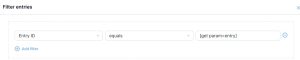
and in the grid advance settings limit 1