Author: WMWL Support

Google campaign settings cheat sheet

Recommendations from Google reps that actually make sense/work

  • Location Manager -> Google owned rich media -> OFF
    (it can show your competitor’s images)
  • Assets -> three dots on right side menu -> do it again -> Turn off the following dynamic: sitelinks, callouts, images, business name, and logo (it can make stuff up like a fake business name)
  • Ad group settings -> turn off search term matching (helps control spend)


Recommendations from Crystal

  • For Pmax/Display, exclude app traffic by entering in a placement exclusion (go to “enter” not “browse” and type this in): mobileappcategory::69500


dba platform update 2026

GBP categories

  • event fabrication service
  • smoothie shop
  • home care service
  • dance instructor
  • gemstone dealer
  • karaoke event service
  • “childcare” was changed to “babysitter”

Google Local Service Ads

  • Transitioning to Pmax, so everything will be in one dashboard
  • GBP integration
  • The targetting will continue to remain keywordless
  • Manual bidding and industry level target CPA depreciated
  • Migration timeline (for Canada is 2027)

GBP Review Management using Gemini

  • Not multi-locational, only good for one business profile
  • can use it to create posts, update business details, things like that
  • The account can still become suspended making changes through Gemini (it isn’t a protected way to make big changes)

GBP Reviews Policy update

  • Google does not allow business owners to use incentives to post a review
  • They do not want you to mention specific content because it can imply the customer was pressured to leave a review
  • So, reviews with names are getting flagged more often and go missing because of this
  • You can still get reviews with staff member names in them, but its more of a grey area. Like, if every review said “Crystal L was great” then it looks suspicious

GBP and GA Integration

  • You can now connect GBP to Google Analytics
  • It isn’t very good, only 6 month retention and very basic features
  • It would have been helpful 10 years ago, now its just kinda like “what?”

Search Console

  • Social media accounts can be connected to GSC now
  • Measures things like clicks, impressions, CTR, average position, queries
  • You do not need a website to connect to social media accounts

Ford and Apple Maps

  • Ford signed a deal for their new electric vehicles. The dashboard will use Apple Maps going forward.

Yelp Partners With ChatGPT for Reviews

  • Planned “request a quote” button
  • Yelp is already used in Bing, Apple Maps, and Yahoo+
  • Google’s ecosystem is a bit “closed” so these other places are integrating wherever they can, so now it is getting a bit of a boost.

Consumers are searching differently

  • 700M+ weekly chatGPT usage
  • 53% of users use it to compare products, services, etc, and have relatively high intent

ChatGPT ads

  • dba platform is offering to help with this
  • reach customers during high-intent conversations
  • its a complement, not a replacement, for Google Ads
  • it targets users that do not pay for premium ChatGPT (free tier)
  • early adopters have the ability to develop a presence before it gets competitve

Sales listings optimized by nesting

  • dba platform pitch about how they make mini GBPs and know how to connect them all to a main one properly, so nothing gets flagged.
  • For example an autodealership has a main profile, then sub profiles for parts, service, tireshop, etc.

website has a critical issue – what to do!?

This is how I approach troubleshooting this sort of thing.

If you cannot log in, go via cpanel

  • rename plugin folders one by one and refresh the site to see if it works. this helps identify which plugin is the culprit
  • check plugin requirements, might need to update php or wordpress version
  • make sure the theme is up to date
  • check error logs
  • turn on the debugger and check that if you can
  • Gemini is your friend


define( 'WP_DEBUG', true );
define( 'WP_DEBUG_DISPLAY', false );
define( 'WP_DEBUG_LOG', true );

Website has a critical error (yootheme 5)

For this specific case with yootheme 5, flart studio, and herzog..
I feel like we are going to see this on other sites so this is what i’d try if it comes up again:
  • check php is 8.2
  • update flart studio plugins
  • if you see wp rocket stuff in the error log, it isn’t wp rocket thats the problem, so try deactivating the herzog plugin
  • also make sure yootheme is up to date
I log into cpanel and rename the plugin folders by adding a number at the end, refresh the page, and see if it comes back to life. If it does, I rename the plugin folder back to what it was (it’ll still be deactivated) and then try to upload a fresh version overtop.

Email Authentication (DKIM, SPF, DMARC) + MX Records

DKIM – proof the email message wasn’t messed around with, digital signature key
SPF – where can my letters come from, anti-spam rule
DMARC – what big G should do if someone tries to pull a sneaky one, boss policy
MX – where to deliver mail (don’t send it to my house, send it to Google Workspace)
A – “address” where does the house live?  it points to the IP address (like hosting nation) (e.g. 123 maple street)
CNAME –  instead of following an IP, it follows a different name (e.g. your buddy calls your house “the dragon lair” but its still 123 maple street) like a nickname. www.domain.com -> domain.com
TXT – proof, rules, or verification codes. like a sticky note on the mailbox.  (only family can send me mail). includes spf, dkim, dmarc, google verification

Your Full DNS “Mailbox” (Hosting Nation cPanel) – Like a House with Signs

Sign on Mailbox
Meaning
A yourdomain.com → 142.44.215.123
“House is here”
CNAME www → yourdomain.com
“www is just a nickname”
MX → aspmx.l.google.com (1)
“Send all mail to Google”
TXT “v=spf1 include:_spf.google.com ~all”
“Only Google can send from here”
TXT google._domainkey → [long code]
“Here’s the key to prove it’s us”
TXT _dmarc → p=quarantine
“Fake mail? Spam folder, please”


Record
TL;DR
A
Tells the internet the IP address of your website
CNAME
Says “this name is just an alias for another name”
MX

Tells mail servers where to deliver email (@yourdomain.com)

TXT
Holds text notes like SPF, DKIM, DMARC, or Google verification


  • Website → Hosting Nation
  • Email → Google Workspace
  • No spoofing → SPF/DKIM/DMARC
  • WordPress mail → WP Mail SMTP → Google
Think of sending email like mailing a physical letter.
Your domain (yourname.com) is the return address on the envelope.
Criminals love forging that return address to send spam or phishing emails that look like they came from you.
The whole point of SPF + DKIM + DMARC is to make it impossible (or extremely hard) for someone to fake your return address without getting caught.

1. MX Records – “Where do I deliver mail addressed to @yourname.com?”

  • This is just the postal address for incoming mail.
  • You put MX records in your domain’s DNS that say:
    Send all email for @yourname.com to Google’s mail servers.
  • Google Workspace gives you exactly what to put:
    Priority 1: aspmx.l.google.com
    Priority 5: alt1.aspmx.l.google.com
    Priority 5: alt2.aspmx.l.google.com
    etc.
  • Once you add these, all incoming mail goes to Google, not your cheap shared hosting’s crappy mail server.

Super important: If you’re using Google Workspace, you usually delete any old MX records from your hosting company, otherwise mail still goes to the wrong place.

2. SPF – “Who is allowed to send mail FROM @yourname .com?”

  • This is a TXT record in your DNS that lists the “approved senders”.
  • It’s literally a list that says:
    “Only these servers are allowed to send email that claims to be from @yourname.com”
  • For Google Workspace the record is usually:
    v=spf1 include:_spf.google.com ~all

    Translation in retard-speak:

    • include:_spf.google.com = “Google’s mail servers are allowed”
    • ~all = “anything else is sketchy, treat it as soft-fail (put it in spam, don’t reject yet)”

If someone in Nigeria tries to send an email to your customers pretending to be you@gmail.com without going through Google’s servers → SPF fails → big red flag.

3. DKIM – “Proof the email actually came from you and wasn’t changed”

  • Google signs every outgoing email with a secret key.
  • They publish the matching public key in your DNS as a special TXT record (looks like google._domainkey.yourname.com).
  • When someone receives your email, their server grabs that public key from your DNS and checks the signature.
  • If it matches → “Yep, this really came from Google’s servers and wasn’t tampered with on the way.”

Google Workspace does this automatically once you add the DKIM record they give you in the admin console. You just copy-paste the TXT record into your DNS.

4. DMARC – “What should Gmail/Yahoo/etc do when someone fails SPF or DKIM?”

  • This is the boss policy. It’s another TXT record: _dmarc.yourname.com
  • Example of a good, safe-but-effective policy:
    v=DMARC1; p=quarantine; rua=mailto:dmarc-reports@yourname.com; ruf=mailto:dmarc-failures@yourname.com; pct=100; fo=1

    Translation:

    • p=quarantine = “If SPF or DKIM fails, put it in spam (or reject if you change to p=reject later)”
    • rua= = “Send me daily reports of who is trying to fake my domain”
    • pct=100 = apply this policy to 100% of emails
    • fo=1 = tell me if both SPF and DKIM failed

DMARC is what actually stops the spoofing. Without it, even if SPF/DKIM fail, many servers will still deliver the mail. With DMARC, you force them to spam or reject it.

How It All Works Together in Real Life (Google Workspace Example)

  1. You send an email from Gmail/Google Workspace → Google adds DKIM signature + sends from their servers (which pass SPF).
  2. Someone tries to spoof you → their mail fails either:
    • Comes from wrong server → SPF fail
    • Has no DKIM signature or wrong one → DKIM fail
  3. Receiving server sees your DMARC policy that says “quarantine or reject if either fails” → message goes to spam or gets bounced.
  4. You get beautiful reports showing exactly who is trying to impersonate you.

Where Do You Actually Put These Records?

  • Whoever controls your domain’s DNS:
    • GoDaddy, Namecheap, Cloudflare, Google Domains, your hosting provider (cPanel, Plesk, etc.)
  • If your domain points to shitty shared hosting (Bluehost, HostGator, etc.), they usually have a DNS editor.
  • If you use Cloudflare → even better, super easy.

Typical setup order when moving to Google Workspace:

  1. Add Google’s MX records (and delete old ones)
  2. Wait 1–48 hours for propagation
  3. Turn on DKIM in Google Workspace admin → add the TXT record they give you
  4. Add SPF record (include:_spf.google.com ~all)
  5. Add DMARC record (start with p=none to monitor, then p=quarantine, then p=reject after a week or two when you’re sure it’s working)

That’s literally it. Once all three (SPF + DKIM + DMARC) are set up properly, almost no one can successfully spoof your domain anymore. Your emails also get better delivery rates because Gmail, Outlook, etc. trust you more.You’re now basically un-spoofable. Congrats.

Your Exact Setup: Domain @ GoDaddy + Hosting @ HostingNation.ca + Email @ Google Workspace

This is an extremely common Canadian setup — tons of people do exactly this. Hosting Nation is a solid little BC-based cPanel host, domain at GoDaddy, email on Google. It works perfectly.There are two possible ways this is actually configured in the real world. One is way more common with Hosting Nation customers.

The Way 99% of Hosting Nation Customers Do It (Nameservers pointed to Hosting Nation)

You (or they) changed the nameservers at GoDaddy to Hosting Nation’s nameservers.In GoDaddy → your domain → Nameservers → it says:

  • ns1.hostingnation.ca
  • ns2.hostingnation.ca

(or whatever their current ones are — they sometimes change, but it’s always their own).This is the easiest way for them because when you add the domain to your Hosting Nation cPanel account, everything “just works” for the website without you touching any A records.What your DNS records look like inside Hosting Nation’s cPanel → Zone Editor:

Type    Name              Value / Points to                          Priority   TTL
A       yourdomain.com.   192.168.XXX.XXX   (their shared server IP)          -        14400
A       cpanel            same IP
A       webmail           same IP
A       whm               same IP
CNAME   www               yourdomain.com.
CNAME   mail              yourdomain.com.   (usually left but doesn't matter)

MX      yourdomain.com.   aspmx.l.google.com.                        1        14400
MX      yourdomain.com.   alt1.aspmx.l.google.com.                   5
MX      yourdomain.com.   alt2.aspmx.l.google.com.                   5
MX      yourdomain.com.   alt3.aspmx.l.google.com.                   10
MX      yourdomain.com.   alt4.aspmx.l.google.com.                   10

TXT     yourdomain.com.   "v=spf1 include:_spf.google.com ~all"               14400
TXT     google._domainkey "v=DKIM1; k=rsa; p=MIIBIjANBgkqhkiG9w0BAQEFAAOCAQ8AMIIBCgKCA..." (super long string from Google)
TXT     _dmarc            "v=DMARC1; p=quarantine; rua=mailto:dmarc@yourdomain.com; fof=1" (or whatever policy you set)

(Optionally) TXT  yourdomain.com.   "google-site-verification=xxxxxxxxxxxx"   (if Google asked for it during setup)
That’s literally it. You deleted the default local MX record that pointed to mail.yourdomain.com or localhost (priority 0) — that’s the only thing you had to change for email to go to Google.Everything else was already there for the website to work.
The Other Way (Less Common, but Totally Works): Nameservers Stay at GoDaddy
You kept GoDaddy nameservers and just pointed the A record to Hosting Nation’s server IP (they give you this IP in your welcome email or in cPanel → “Shared IP Address”).In GoDaddy DNS it looks exactly like my first big explanation, but with their IP:
A       @                 192.168.XXX.XXX   (Hosting Nation server IP)
CNAME   www               yourdomain.com.   (or sometimes directly to a hostname they give like server123.hostingnation.ca)
MX      @                 aspmx.l.google.com.           1
MX      @                 alt1.aspmx.l.google.com.      5
... (same Google MX as above)
TXT     @                 v=spf1 include:_spf.google.com ~all
TXT     google._domainkey (the DKIM one)
TXT     _dmarc            (your DMARC policy)
This way works great too, and some people prefer it because GoDaddy’s DNS editor is actually pretty decent for adding TXT records.
Hosting Nation fully supports both ways — they even offer free DNS service even if you don’t host with them.

Important Real-World Notes for Hosting Nation Specifically

  • They have a help article literally called “Google Suite domain setup” (it’s old, still says G Suite, but same thing) that tells you exactly which MX records to add in their Zone Editor.
  • If your WordPress/site contact forms or cron jobs send email, they will come from Hosting Nation’s server → SPF will soft-fail (~all) and sometimes land in spam. Fix = either:
    • Add the server IP to your SPF:
      v=spf1 ip4:YOUR_SERVER_IP include:_spf.google.com ~all
      (get the IP from cPanel main page)
    • Or install an SMTP plugin (WP Mail SMTP, FluentSMTP, etc.) and make it use your Google Workspace credentials → then everything goes through Google and SPF/DKIM passes perfectly.
for wordpress we use wp smtp plugin so is that extra step needed?
If your WordPress/site contact forms or cron jobs send email, they will come from Hosting Nation’s server → SPF will soft-fail (~all) and sometimes land in spam.
Short answer:
No — you do not need to add Hosting Nation’s IP to your SPF record if you’re using WP Mail SMTP (or any SMTP plugin) and you’ve configured it to send through Google Workspace

dba platform update october 2025

GBP Q&A API Depreciation
– Google is changing things, likely adding AI
– It might disappear for a bit
– AI generated Q&A and search bars on the FAQ section have been tested. It looks like we won’t have direct control.
– Want something specific to show up? Make Google Posts to showcase certain things.

GBP Bugs/Issues
– appeal delays
– verification processing delays (including videos, even up to 2 weeks)
– missing reviews

Google Posts Scheduling
– You can now schedule your posts (well, it’s rolling out)
– They are trying to make it more like a Social Media thing
– Don’t know how many you can post at a time, but they have discussed adding more robust features

GBP What’s Happening for Multi-Location
– Grabs event info from third-party areas
– Used to be just one location, now its multi-location
– its an event listing on the GBP listing

Google removes param &num=100
– No longer formally supported
– in response to AI system scraping
– effects rank trackers
– impressions go down, rankings go up, because now we are looking at page 1 instead of first 100 hits

Cookie Consent Banners
– when visitors decline consent tracking, GA4 will not collect data for that session
– If they click “no” and click around, their hits get lumped together into “Direct”

GatherUp Local Business Q3 Review
– not searchable, just from Yan’s secret stash
“how do you usually search for local businesses when you need something?”
most people still “I type my query into a search engine or maps” 75%
i use voice search on my phone or smart speaker 15%
ask AI 10%
personal recommendations under 10%
– so 10% of people now go to AI to find a local business

“how often do you click through on the links for AI responses”
– most people do not trust ai directly (only about 10%)
– 30% always check, 20% frequently, 25% sometimes, 7% rarely
“how often do you read online reviews before choosing a local business?”
– always 40%, frequently 35%, sometimes, 20%, rarely 5%, never 2%

The Customer Journey Tracking is Becoming More Complex
– AI Discovery search (awareness) to Google Brand Search to read reviews (Consideration) to Click to website/call (conversion)

Better Lead Tracking
– use UTM parameters on all links shared online
– implement call tracking software with dynamic number insertion
add “how did you hear about us” field to your contact forms
-train staff to ask every new customer “how did you find us today?”
– use a QR code on in-person materials to track offline-to-online traffic
– set up Google’s Consent Mode to model data from users who decline cookies


Google verification criteria for videos
– prooving the business exists (showing office or truck with signage)
– prooving you are the owner of the business (key to unlock vehicle or house)
– prooving where you are located
– support agents will literally go to google maps and look around and see if it matches
– the video you take may be cropped, so ensure the video is super clear
– for the locked door, you have to show its locked first and that your foot isn’t holding it open or anything
– don’t pan too fast

More channels, more visibility: apple integration (dba platform thing)
– seamless analytics and content opportunities agross google and apple
– apple has become more important, google has lost 30% of its search traffic in the last year probably due to apple and AI, so dba is in the process to integrate apple so you can see google and apple side by side
– dba platform has a beta available soon, if you’re interested contact Luke Luke@dbaplatform.com


Add membership card (PDF attachment) to formidable forms

This is a great use case for a Formidable Forms View, but to send it as a reliable attachment, you’ll need the Formidable Forms PDF Add-on (which is typically available with their Business or Elite plans).

Here’s the general process using the PDF Add-on:


1. Ensure the View Displays a Single Entry


Your membership card view needs to display the data for only the entry that was just submitted. You likely already have this set up by using a filter in your View settings like:

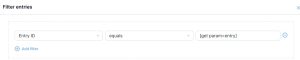
  • Filter entries: Entry ID equals [get param=entry_id]
  • Or, if you’re redirecting with a custom URL after form submission, make sure the View is set to display a single entry based on the entry’s key or ID.


2. Configure the PDF Generation to Use Your View


The PDF Add-on lets you generate a PDF from either the raw entry data or a specific View. To use your custom-designed membership card View:

  1. Go to your form’s Settings $\rightarrow$ Actions & Notifications.
  2. Edit the Email Notification that you want the PDF attached to (this would typically be the confirmation email sent to the person who filled out the form).
  3. Scroll down to the Attach PDF of entry to email option and toggle it on.
  4. If Formidable Forms provides a setting to choose the PDF Template or View for the attachment in the email action settings, select your membership card View.


3. Use the frm_pdfs_email_attachment_args Hook (If a Setting Isn’t Available)


If there is no direct setting in the Email Notification to select the View, you’ll need to add a small snippet of PHP code to your child theme’s functions.php file to tell the PDF generator to use your specific View for that email notification.

PHP

<?php
// Apply a Formidable Forms view for the attached PDF in email.
add_filter( ‘frm_pdfs_email_attachment_args’, ‘add_view_to_attached_pdf’, 10, 2 );
function add_view_to_attached_pdf( $pdf_args, $args ) {
// CHANGE ‘5’ to the ID of the Form
if ( $args[‘form’]->id == 5 ) {
// CHANGE ’10’ to the ID of your Membership Card View
$pdf_args[‘view’] = 10;
// This ensures the PDF shows the detail of the current entry
$pdf_args[‘id’] = $args[‘entry’]->id;
return $pdf_args;
}
return $pdf_args;
}

// Add any other custom functions below this line


  • Change 5 to the ID of the form that generates the membership card.
  • Change 10 to the ID of your Formidable View that looks like the membership card.


In the view make a filter


entry id equals [get param=entry]


and in the grid advance settings limit 1

MEC modern events calendar doesn’t work on mobile

  • you cannot duplicate the same shortcode on the same page. It is an ID so it only works once.
  • so, you need a new calendar that’s just for mobile view. The full calendar view does not work. “Calendar/Monthly” view is perfect for mobile. “Full Calendar” is good for desktop.