
Year in footer

I figured out the issue with the footer issue with the year. You need to put the code in the p tags then it works fine.

its weird that its not in p tags when you download layouts from yootheme. but it is solved anyhow


<p>© <script> document.currentScript.insertAdjacentHTML(‘afterend’, ‘<time datetime=”‘ + new Date().toJSON() + ‘”>’ + new Intl.DateTimeFormat(document.documentElement.lang, {year: ‘numeric’}).format() + ‘</time>’); </script> Design Bites. All rights reserved.</p>

 

Footer date issue

YOOtheme, set up child theme

  • Download yootheme and install it in the themes folder (/wp-content/themes)
  • Create a new folder and name it yootheme-child
  • in the new folder, create a style.css document with the following info:
/*
 Theme Name:   YOOtheme Child
 Template:     yootheme
 Author:       WMWL
 Description:  YOOtheme Child Theme
 Version:      1.0.0
 Text Domain:  yootheme-child
*/


Then, go to WP and activate the child theme. The bolded text above has to be exactly as shown.


yootheme video: https://www.youtube.com/watch?v=ur8BcS0-68Q

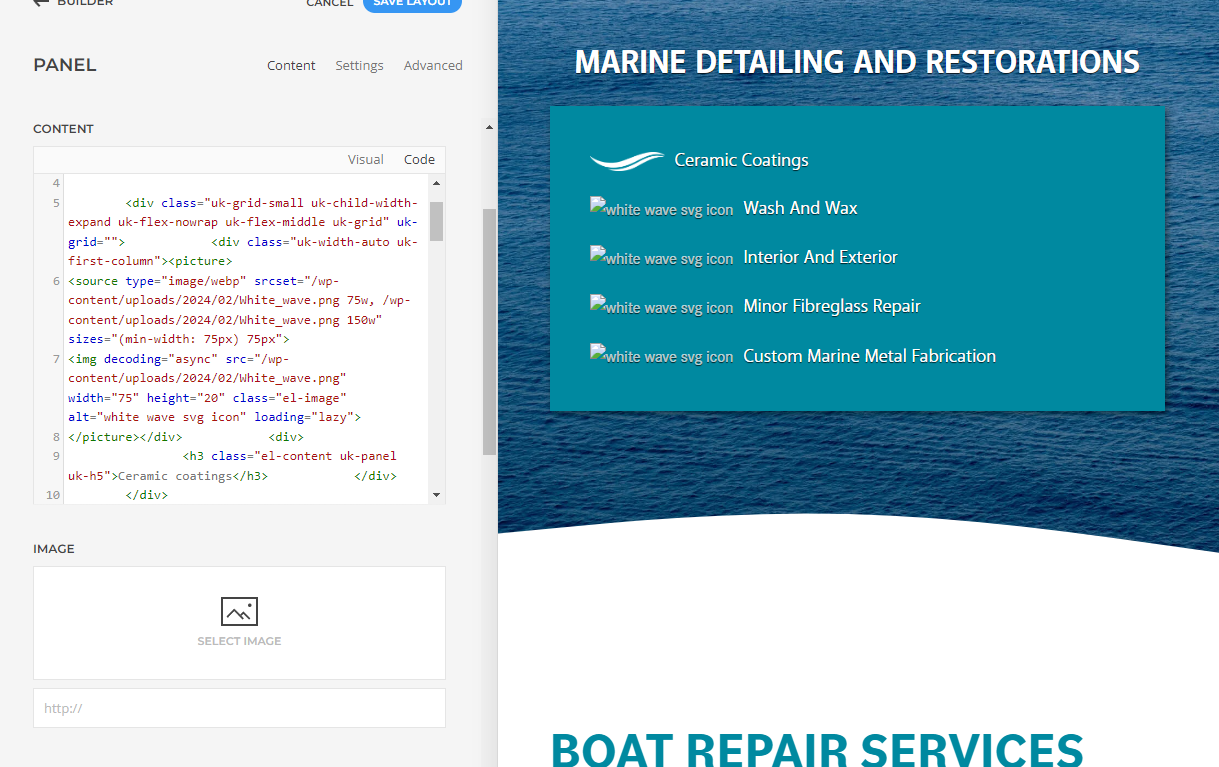
Fix Broken SVG icons

When migrating from dev site to live site, sometimes images break.

Example code:

<div class=”uk-grid-small uk-child-width-expand uk-flex-nowrap uk-flex-middle uk-grid” uk-grid=””>            <div class=”uk-width-auto uk-first-column”><picture>
<source type=”image/webp” srcset=”https://capeboatworks.com/wp-admin/admin-ajax.php?action=kernel&amp;p=image&amp;src=%7B%22file%22%3A%22wp-content%2Fuploads%2F2024%2F02%2FWhite_wave.png%22%2C%22type%22%3A%22webp%2C100%22%2C%22thumbnail%22%3A%2275%2C%2C%22%7D&amp;hash=92e7d6ea 75w, /wp-content/themes/yootheme/cache/e8/White_wave-e8f06247.webp 150w” sizes=”(min-width: 75px) 75px”>


If it is a SVG, here is the fix:


in the future just change the srcset and src to /wp-content/file name ect. should fix the problem
SVG fix

How to add WMWL footer to website.

Link to How To: https://docs.google.com/document/d/1H1RKiccJ3htR8buPF24iiKcttAwHuObqgITCponONeE/edit?usp=sharing

Introduction

Do not use the image element in Yootheme Pro, as it doesn’t allow for enough variables. Use a text element and add the HTML below.

Instructions

  1. Use a text element in Yootheme Pro.
  2. The code below may have to be adjusted for:
    1. Actual file name/location

    2. <p><img src=”wp-content/uploads/2020/09/logo_horz_blk.svg” alt=”Footer logo for Websites Made With Love in Parksville, BC” width=”180″ title=”Click here to visit Websites Made With Love, a Vancouver Island Web Agency based in Parksville, BC” class=”alignnone size-medium wp-image-30″ target=”_blank” rel=”noopener noreferrer”/></p>

  3. This is better for a few simple reasons:
    1. Can add the rel=”noopener noreferrer” class
    2. Can add the title=”Click here to visit Websites Made With Love, a Vancouver Island Web Agency based in Parksville, BC” class
    3. It just gives us a bit more flexibility using HTML